Explore/GitHub Agent Apps Campaign/ChatGPTNextWeb/NextChat
Chat UISandbox, from sourcesucceeded

ChatGPTNextWeb/NextChat

ChatGPTNextWeb/NextChatat defdcdb

Open-source chat UI for large language models with personas, message editing and export, run from its repository in the DeepQA sandbox.

Tested byDeepQA TeamfromChatGPTNextWeb/NextChatat defdcdbonSep 18, 2026

Run #1model gemini-balanced (vertex)took 9m

All 12 scenarios passed, no issues after the audit.

Share on X
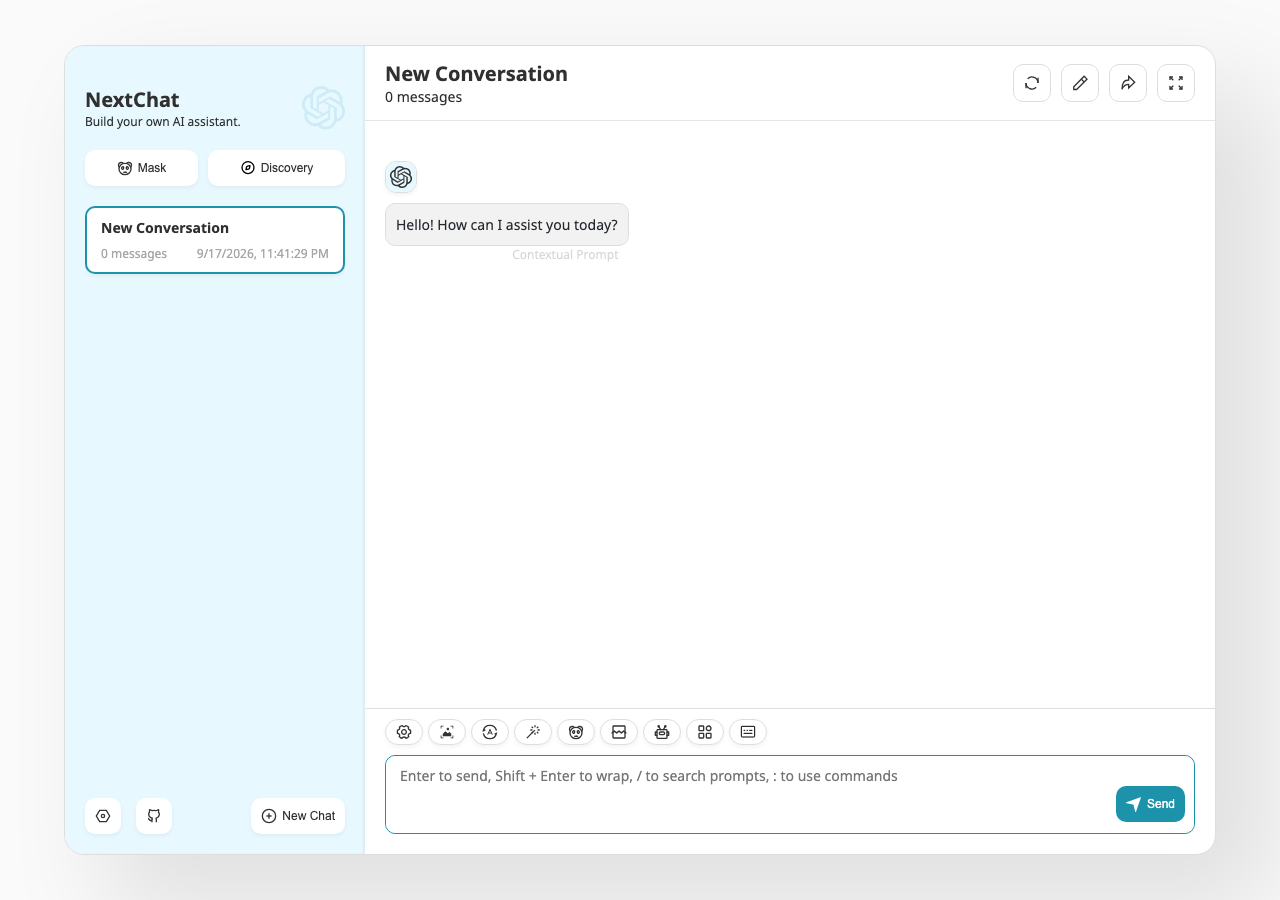
ChatGPTNextWeb/NextChat in the browser during the run

By the numbers

12 of 12
scenarios passed
161
browser actions
34
screenshots
156
model calls
8.7
minutes
12
scenarios
12
passed
0
failed
0
blocked
0
issues

Walkthrough

Every scenario DeepQA drove in the browser, in plan order, with the 29 screenshots it captured along the way. A passing scenario is evidence too.

  1. S1
    Default route redirects to chat

    1 step, 1 screenshot

    pass
    S1-3.png
    S1 · Default route redirects to chat
    • Navigated to http://127.0.0.1:3000/ and verified the main chat interface loaded with conversation list, message area, contextual prompt, and send input.
    • Navigating to http://127.0.0.1:3000/ successfully loads the NextChat main chat interface, displaying the sidebar conversation list, the initial 'Hello! How can I assist you today?' prompt, and the message composition controls.
  2. S2
    Configure authentication access code

    3 steps, 3 screenshots

    pass
    S2-2.png
    S2 · Configure authentication access code
    S2-5.png
    S2 · Configure authentication access code
    S2-7.png
    S2 · Configure authentication access code
    • Navigated to /#/auth, entered a test access code into the Access Code input, clicked Confirm, and observed successful redirection back to the chat view at /#/chat.
    • Navigating to /#/auth displays the access code configuration modal/page.
    • Entering a test access code and clicking Confirm saves the configuration and redirects the user to /#/chat.
  3. S3
    Start a new chat session

    2 steps, 3 screenshots

    pass
    S3-1.png
    S3 · Start a new chat session
    S3-4.png
    S3 · Start a new chat session
    S3-7.png
    S3 · Start a new chat session
    • Navigated to the chat page with the default initial conversation.
    • Clicked 'Just Start' on the new chat page; a new empty chat session was created and displayed with 0 messages.
    • A new empty chat session was initialized successfully and is visible in the chat area with 0 messages.
    • The sidebar conversation list updated to include the new session alongside the previous session.
  4. S4
    Send a valid chat message

    3 steps, 3 screenshots

    pass
    S4-1.png
    S4 · Send a valid chat message
    S4-4.png
    S4 · Send a valid chat message
    S4-7.png
    S4 · Send a valid chat message
    • Loaded NextChat interface ready for message input.
    • Entered 'Hello world' into the chat input textbox.
    • Clicked Send and observed 'Hello world' appended to the conversation history, with message count updating to 2.
    • The 'Hello world' message successfully appeared appended to the conversation history and the conversation message counter updated to 2 messages.
  5. S5
    Prevent sending empty messages

    3 steps, 3 screenshots

    pass
    S5-2.png
    S5 · Prevent sending empty messages
    S5-5.png
    S5 · Prevent sending empty messages
    S5-13.png
    S5 · Prevent sending empty messages
    • Navigated to /#/chat and observed the chat interface.
    • Verified that the send input textbox is completely empty in a conversation with 0 messages.
    • Navigated to http://127.0.0.1:3000/#/chat.
    • Selected a conversation with 0 messages.
    • Verified that the 'Send' input textbox was completely empty.
    • Clicked the 'Send' button with an empty input.
    • Observed that no blank message or chat bubble was appended to the conversation history, and the conversation remained at 0 messages.
    • Also tested submitting whitespace-only input and confirmed that no empty message was created.
  6. S6
    Handle unauthorized API access gracefully

    5 steps, 3 screenshots

    pass
    S6-2.png
    S6 · Handle unauthorized API access gracefully
    S6-6.png
    S6 · Handle unauthorized API access gracefully
    S6-11.png
    S6 · Handle unauthorized API access gracefully
    • Entered invalid access code 'invalid_access_code_9999' into the access code input.
    • Error message indicating an issue with missing/invalid API key credentials was clearly displayed in the chat UI along with helpful troubleshooting links.
    • Navigated to the auth page at /#/auth and entered an invalid access code.
    • Confirmed authentication and was redirected to the chat UI at /#/chat.
    • Submitted the prompt 'Test prompt' and observed a clear error response in the chat interface detailing the API authorization issue and providing links to configure keys or settings.
  7. S7
    Edit conversation messages

    2 steps, 4 screenshots

    pass
    S7-1.png
    S7 · Edit conversation messages
    S7-4.png
    S7 · Edit conversation messages
    S7-9.png
    S7 · Edit conversation messages
    S7-11.png
    S7 · Edit conversation messages
    • Navigated to the chat page and clicked 'Edit All Messages', which opened a modal containing controls to modify conversation topic, message roles, and existing message content. Changes were successfully applied upon clicking Confirm.
    • The 'Edit All Messages' button on the chat screen opens an editing modal dialog containing controls to modify the conversation title and edit past message contents/roles.
    • Modifications such as updating the topic and message settings persist and update the conversation view upon clicking Confirm.
  8. S8
    Export messages as Markdown

    2 steps, 2 screenshots

    pass
    S8-1.png
    S8 · Export messages as Markdown
    S8-4.png
    S8 · Export messages as Markdown
    • Loaded chat page with existing messages and located the 'Export All Messages as Markdown' button.
    • Clicked the 'Export All Messages as Markdown' button which initiates the file download of the conversation in Markdown format.
    • Navigated to chat interface with active conversation.
    • Clicked 'Export All Messages as Markdown' button which triggers the client-side download of the conversation as a Markdown file.
  9. S9
    Refresh conversation title

    2 steps, 2 screenshots

    pass
    S9-1.png
    S9 · Refresh conversation title
    S9-3.png
    S9 · Refresh conversation title
    • Loaded chat page showing the 'Refresh Title' button in the chat header.
    • Clicked 'Refresh Title' button; the button is interactive and triggers the title regeneration process without UI freeze.
    • Navigated to the chat interface with an existing conversation.
    • Located and clicked the 'Refresh Title' button in the chat header.
    • The action executed cleanly without UI freezing or uncaught runtime exceptions.
  10. S10
    Navigate to Settings

    2 steps, 2 screenshots

    pass
    S10-2.png
    S10 · Navigate to Settings
    S10-5.png
    S10 · Navigate to Settings
    • Navigated to /#/chat and observed the chat interface with settings button in sidebar.
    • Clicked Settings link; URL updated to #/settings and the settings pane rendered completely with all configuration options.
    • Navigated to http://127.0.0.1:3000/#/chat and verified the sidebar settings link was present.
    • Clicked the settings link and verified URL updated to http://127.0.0.1:3000/#/settings.
    • Verified that the application settings view rendered successfully with all setting controls (Theme, Language, Font Size, Models, TTS, Local Data, etc.).
  11. S11
    Navigate to Masks discovery

    2 steps, 1 screenshot

    pass
    S11-2.png
    S11 · Navigate to Masks discovery
    • Navigated to chat view and located the Mask navigation button.
    • Navigated to http://127.0.0.1:3000/#/chat where the chat interface loaded successfully.
    • Navigated to Masks view where the URL updated to http://127.0.0.1:3000/#/masks.
    • The Prompt Template / Mask management view rendered correctly showing 32 prompt templates, Export, and Import controls.
  12. S12
    Bypass auth configuration using Later button

    2 steps, 2 screenshots

    pass
    S12-2.png
    S12 · Bypass auth configuration using Later button
    S12-4.png
    S12 · Bypass auth configuration using Later button
    • Navigated to /#/auth view showing Access Code and API key inputs along with Return and Confirm buttons.
    • Clicked the Return button in the auth view and was successfully navigated back to the main chat interface without entering an access code.
    • Navigated to the auth configuration page at /#/auth.
    • Clicked the Return / Later button in the auth view.
    • Verified that the application navigated back to the main chat interface at /#/ without requiring an access code or blocking the user.

Issues

No finding survived the audit. Nothing to fix from this run.

Environment limitations

These failures came from the test environment, not from the application: a credential the sandbox does not hold, a demo nobody may write to, a resource it cannot reach. They are not counted as issues.

  • S1 could not exercise this: Network request fails with ERR_NAME_NOT_RESOLVED. A network request fails with an ERR_NAME_NOT_RESOLVED error logged in the console. The audit recorded the test environment as the cause, so it is not counted as an issue.
  • S4 could not exercise this: API request returns 401 Unauthorized when sending a message. The API request fails with a 401 Unauthorized error in the console due to missing or unconfigured API credentials. The audit recorded the test environment as the cause, so it is not counted as an issue.

Critic audit

An adversarial second pass over every finding before it reaches the report.

0
findings reviewed
1
re-verified live
0
withdrawn
    • The test environment lacks configured API credentials, causing expected 401 Unauthorized errors when the application attempts to send messages or refresh conversation titles.
    • A persistent ERR_NAME_NOT_RESOLVED console error appears across all scenarios, indicating a sandbox limitation connecting to a third-party resource or telemetry service.
    • A possible defect in S2 ("React warning for invalid `aria` attribute on PasswordInput") was not promoted: the live replay came back not-reproduced.

    Report

    QA report: ChatGPTNextWeb/NextChat at defdcdb

    All twelve test scenarios passed with no application defects identified.

    The test suite exercised core client workflows across NextChat, including initial route redirection, authentication access code setup, session creation, message editing, Markdown export, empty input validation, and navigation through Settings and Masks discovery.

    Because the sandbox environment lacked live upstream API credentials and external network connectivity, end-to-end model responses and automated title generation could not be tested against a live backend. However, the application handled the resulting unauthorized API responses and network failures gracefully in the user interface.

    Overall, all twelve scenarios completed successfully without uncovering any software defects in the tested build.

    Run summary
    MetricCount
    Scenarios executed12
    Passed12
    Failed0
    Blocked0
    Findings raised0
    Issues after the audit0
    Withdrawn by the audit0
    Critical / high / medium / low0 / 0 / 0 / 0

    Target: http://127.0.0.1:3000 · Testing level: deep_feature · Stack: node / yarn (next)

    Issues

    No issues survived the audit.

    Environment limitations

    These failures came from the test environment, not from the application: a credential the sandbox does not hold, a demo nobody may write to, a resource it cannot reach. They are not counted as issues. They record what this run could not exercise.

    • S1 could not exercise this: Network request fails with ERR_NAME_NOT_RESOLVED. A network request fails with an ERR_NAME_NOT_RESOLVED error logged in the console. The audit recorded the test environment as the cause, so it is not counted as an issue.
    • S4 could not exercise this: API request returns 401 Unauthorized when sending a message. The API request fails with a 401 Unauthorized error in the console due to missing or unconfigured API credentials. The audit recorded the test environment as the cause, so it is not counted as an issue.
    Scenario results
    ScenarioPriorityResultIssues
    S1 Default route redirects to chathighpassnone
    S2 Configure authentication access codehighpassnone
    S3 Start a new chat sessionhighpassnone
    S4 Send a valid chat messagehighpassnone
    S5 Prevent sending empty messageshighpassnone
    S6 Handle unauthorized API access gracefullyhighpassnone
    S7 Edit conversation messagesmediumpassnone
    S8 Export messages as Markdownmediumpassnone
    S9 Refresh conversation titlemediumpassnone
    S10 Navigate to Settingsmediumpassnone
    S11 Navigate to Masks discoverymediumpassnone
    S12 Bypass auth configuration using Later buttonlowpassnone
    The audit

    The Critic reviewed 0 findings and re-verified 1 of them live in the browser, replaying the reported steps on a fresh page.

    • The test environment lacks configured API credentials, causing expected 401 Unauthorized errors when the application attempts to send messages or refresh conversation titles.
    • A persistent ERR_NAME_NOT_RESOLVED console error appears across all scenarios, indicating a sandbox limitation connecting to a third-party resource or telemetry service.
    • A possible defect in S2 ("React warning for invalid aria attribute on PasswordInput") was not promoted: the live replay came back not-reproduced.
    Coverage and caveats

    In scope: Authentication and Access Code configuration; Chat session initialization and message lifecycle; Message validation and error handling; Secondary chat actions (Edit, Export, Refresh Title); Navigation to Masks and Settings.

    Not covered: Backend AI model generation accuracy; Direct validation of local storage persistence (verified via observable UI state instead); Responsive design behavior across mobile devices.

    • The tester does not need a genuine OpenAI/Gemini/Anthropic API key to verify the UI's handling of errors and submissions.
    • Bypassing the auth screen via the 'Later' button permits access to the main chat interface for testing local UI features.
    By the numbers
    MetricValue
    Scenarios12 passed, 0 failed, 0 blocked of 12 (29 planned steps)
    Browser actions161 (34 clicks, 10 inputs, 33 navigations, 84 snapshots)
    Screenshots34 (4 explore, 29 scenario, 1 critic), 28 captioned
    Coverage6 pages, 2 forms, 3 flows, 3 console errors
    Audit0 findings, 1 re-verified live, 0 confirmed, 0 promoted, 0 withdrawn
    Model calls156
    Tokens680,475 input, 8,263 output, 16,013 thinking
    Time9 min
    StageCallsInputOutputThinkingSeconds
    explore27118,0592,1771,806111
    plan13,8021,8933,04539
    test123546,0923,2946,545319
    critique410,9477424,10144
    report11,5751575166

    Run log

    stagecallstokenstime
    Explore27122k1m 51s
    Plan18.7k39s
    Test123555.9k5m 19s
    Critique415.8k44s
    Report12.2k6s
    Total156704.8k8m 39s
    Intake
    Explore
    Plan
    Test
    Critique
    Report
    • 05:40:52Zexploreexplore started
    • 05:50:07ZexploreExplored / (12 controls, 0 forms)
    • 05:50:07ZexploreMapped 6 pages, 2 forms, 3 flows in 27 turns.
    • 05:50:07Zexploreexplore completed in 111s.
    • 05:50:07Zplanplan started
    • 05:50:07ZplanPlanned 12 scenarios (6 high, 5 medium, 1 low).
    • 05:50:07Zplanplan completed in 39s.
    • 05:50:07Ztesttest started
    • 05:50:07ZtestS1 executed (pass)
    • 05:50:07ZtestS2 executed (pass)
    • 05:50:07ZtestS3 executed (pass)
    • 05:50:07ZtestS4 executed (pass)
    • 05:50:07ZtestS5 executed (pass)
    • 05:50:07ZtestS6 executed (pass)
    • 05:50:07ZtestS7 executed (pass)
    • 05:50:07ZtestS8 executed (pass)
    • 05:50:07ZtestS9 executed (pass)
    • 05:50:07ZtestS10 executed (pass)
    • 05:50:07ZtestS11 executed (pass)
    • 05:50:07ZtestS12 executed (pass)
    • 05:50:07ZtestExecuted 12 scenarios: 12 passed, 0 failed, 0 blocked, 0 findings.
    • 05:50:07Ztesttest completed in 319s.
    • 05:50:07Zcritiquecritique started
    • 05:50:07ZcritiqueReviewed 0 findings; 3 possible defects spotted in passed scenarios.
    • 05:50:07ZcritiqueRe-verified a possible defect in S2: not-reproduced.
    • 05:50:07ZcritiqueAudit complete: 0 confirmed, 0 withdrawn, 0 promoted, 1 re-verified live.
    • 05:50:07Zcritique2 failures came from the test environment rather than the application. They are reported as environment limitations, not issues.
    • 05:50:07Zcritiquecritique completed in 44s.
    • 05:50:07Zreportreport started
    • 05:50:07ZreportReported 0 issues (0 critical, 0 high, 0 medium, 0 low) from 0 findings.
    • 05:50:07Zreportreport completed in 6s.

    Put an agent team on your next pull request.

    Connect a repo, dispatch a Run, and read an audited, evidence-backed report the same day.