Hosted appChat UIHosted, in placesucceeded

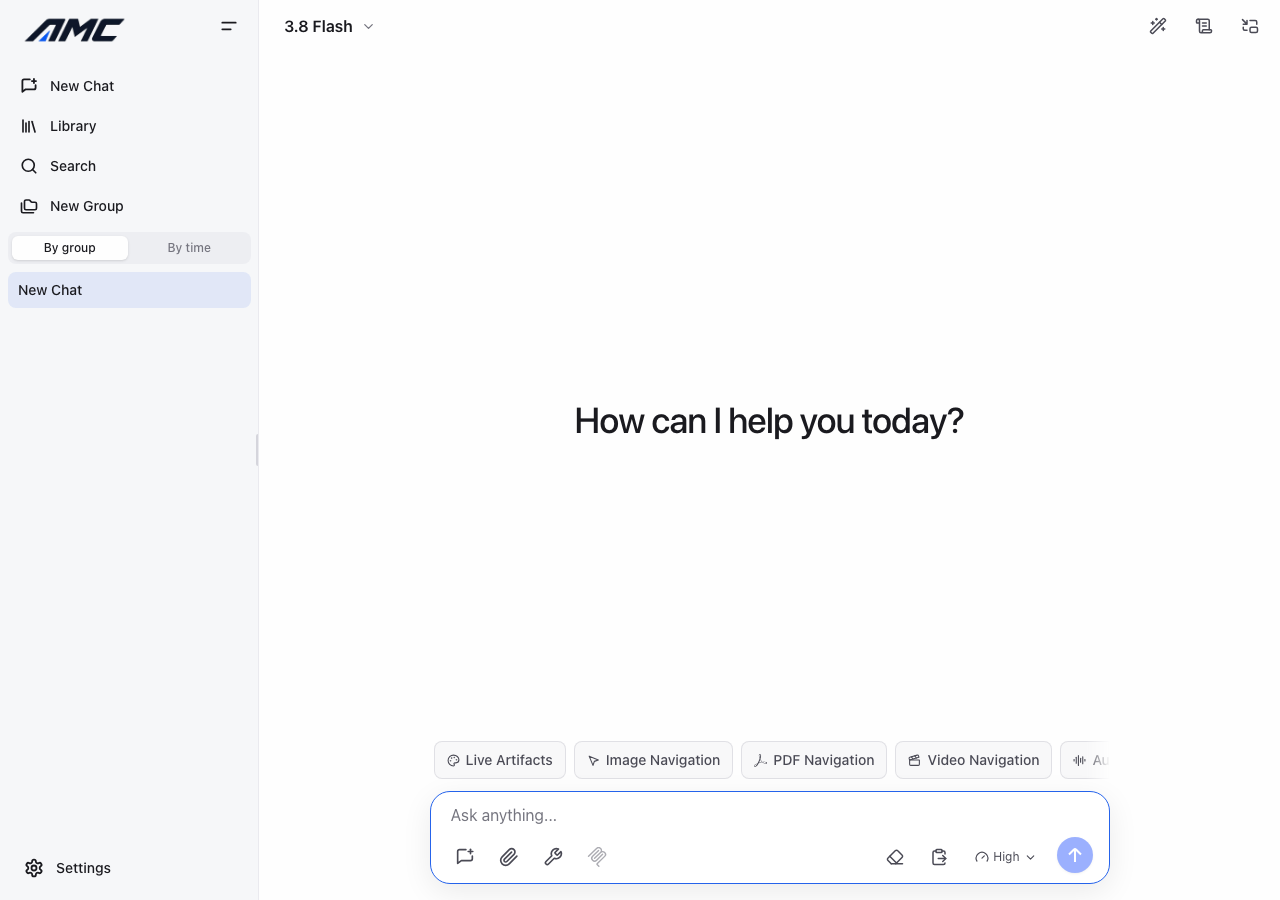
Open-source bring-your-own-key chat UI for multiple model providers with presets, a library and live artifacts. Tested in place on its hosted instance.

Tested in place byDeepQA Teamatall-model-chat.pages.dev/onSep 20, 2026

Run #1model gemini-balanced (vertex)took 7m

All 10 scenarios passed, no issues after the audit.

Share on X
AMC WebUI in the browser during the run

By the numbers

10 of 10
scenarios passed
146
browser actions
32
screenshots
144
model calls
7.0
minutes
10
scenarios
10
passed
0
failed
0
blocked
0
issues

Walkthrough

Every scenario DeepQA drove in the browser, in plan order, with the 28 screenshots it captured along the way. A passing scenario is evidence too.

  1. S1
    Submit chat message without API key

    3 steps, 2 screenshots

    pass
    S1-3.png
    S1 · Submit chat message without API key
    S1-6.png
    S1 · Submit chat message without API key
    • Typed 'Hello world' into the chat message input.
    • Clicked send message; a new chat session was created in the sidebar with title 'API Key Error' and page title updated to 'API Key Error • AMC WebUI'.
    • Typed 'Hello world' into the chat message input box and clicked 'Send message'.
    • The chat created a new session with URL /chat/chat-c8789936-cc36-4543-8506-faaa7a4d0c0e, the document title updated to 'API Key Error • AMC WebUI', and a history item titled 'API Key Error' appeared in the sidebar.
  2. S2
    Configure and clear Provider API settings

    5 steps, 4 screenshots

    pass
    S2-2.png
    S2 · Configure and clear Provider API settings
    S2-4.png
    S2 · Configure and clear Provider API settings
    S2-7.png
    S2 · Configure and clear Provider API settings
    S2-10.png
    S2 · Configure and clear Provider API settings
    • Opened Settings dialog.
    • Switched to Providers & APIs tab showing Google Gemini provider and API Keys textbox.
    • Entered 'test-key' into Gemini API Keys textbox.
    • Cleared the Gemini API Keys field.
    • Opened the Settings modal via the sidebar Settings button.
    • Switched to the 'Providers & APIs' tab displaying provider configurations.
    • Typed 'test-key' into the Gemini API Keys input field.
    • Cleared the Gemini API Keys input field without encountering validation traps or errors.
    • Closed the Settings modal using the Close button, which dismissed cleanly and returned to the main chat interface.
  3. S3
    Apply a Preset Scenario

    3 steps, 3 screenshots

    pass
    S3-1.png
    S3 · Apply a Preset Scenario
    S3-3.png
    S3 · Apply a Preset Scenario
    S3-12.png
    S3 · Apply a Preset Scenario
    • Opened the Preset Scenarios modal from the header button.
    • Searched for 'Formal' in preset scenarios manager and the list filtered correctly to 'Formal'.
    • Navigated to the chat application and clicked the Preset Scenarios button in the banner header.
    • The Preset Scenarios modal dialog opened displaying built-in persona and scenario presets with category filters and search capabilities.
    • Selected the '⚡ Succinct' preset scenario card ('Load this scenario into chat').
    • A new chat session titled '⚡ Succinct' was created with the scenario's system persona and instructions applied.
    • Verified the search filter inside the preset scenarios modal correctly filtered matching scenario cards when typing 'Formal'.
  4. S4
    Start a new chat session

    1 step, 3 screenshots

    pass
    S4-1.png
    S4 · Start a new chat session
    S4-3.png
    S4 · Start a new chat session
    S4-7.png
    S4 · Start a new chat session
    • Navigated to an existing chat session with previous messages/context.
    • Clicked 'Start a new chat session' link; the interface reset to a fresh chat screen ready for a new prompt and created a new session URL.
    • Navigated to an existing conversation with history.
    • Clicked the 'Start a new chat session' link in the sidebar.
    • The chat interface successfully reset to a clean state with prompt suggestions and an empty chat input, ready for a new conversation.
  5. S5
    Change Current AI Model

    2 steps, 3 screenshots

    pass
    S5-1.png
    S5 · Change Current AI Model
    S5-3.png
    S5 · Change Current AI Model
    S5-7.png
    S5 · Change Current AI Model
    • Initial page loaded with current model set to Gemini 3.8 Flash.
    • Selected 'Gemini 3.5 Flash-Lite' from the model list and confirmed selection; the Current AI Model button updated its label to 'Current AI Model: Gemini 3.5 Flash-Lite. Click to change model'.
    • The model selection menu opens properly upon clicking the Current AI Model button.
    • Navigating through the model list and selecting an alternative model (Gemini 3.5 Flash-Lite) immediately updates the model button label to reflect the new selection.
  6. S6
    Navigate to Library and back

    3 steps, 4 screenshots

    pass
    S6-1.png
    S6 · Navigate to Library and back
    S6-3.png
    S6 · Navigate to Library and back
    S6-5.png
    S6 · Navigate to Library and back
    S6-8.png
    S6 · Navigate to Library and back
    • On active chat session page (/chat/chat-79461310-800d-4810-bf19-b4c4163c4128), ready to navigate to Library.
    • Library page loaded successfully with categories (All, Images, Documents, Audio, Video), Search input, View toggles (Grid/List), and Back button.
    • Clicked the Back button on the Library page and successfully returned to the active chat session (/chat/chat-79461310-800d-4810-bf19-b4c4163c4128).
    • Successfully clicked the Library link from the sidebar, navigating from the active chat session (/chat/chat-79461310-800d-4810-bf19-b4c4163c4128) to /library.
    • The Library page loaded properly with search, categorized filters (All, Images, Documents, Audio, Video), view mode toggles, and empty-state placeholders.
    • Clicking the Back button on the Library page successfully returned the application to the active chat session URL with its original view intact.
  7. S7
    Prevent sending empty chat messages

    2 steps, 2 screenshots

    pass
    S7-3.png
    S7 · Prevent sending empty chat messages
    S7-5.png
    S7 · Prevent sending empty chat messages
    • Entered three spaces into the Chat message input; the Send message button remained disabled.
    • Verified that pressing Enter on whitespace-only input does not submit a message and the conversation remains clear of empty messages.
    • The Chat message input was populated with three spaces (' ').
    • The 'Send message' button remained disabled when only whitespace was entered.
    • Pressing Enter on the whitespace input did not submit or add any blank message to the chat.
  8. S8
    Submit message via keyboard Enter

    2 steps, 2 screenshots

    pass
    S8-2.png
    S8 · Submit message via keyboard Enter
    S8-5.png
    S8 · Submit message via keyboard Enter
    • Typed 'Testing keyboard' into the chat message input textbox.
    • Pressed Enter in the chat message input box, which triggered submission, updated the URL to a new chat ID, cleared the textbox, and changed the page title to 'API Key Error • AMC WebUI'.
    • Pressing Enter in the chat message input field successfully triggered submission of the message, transitioning the session and updating the title to 'API Key Error • AMC WebUI'.
  9. S9
    Toggle Live Artifacts rendering

    1 step, 3 screenshots

    pass
    S9-1.png
    S9 · Toggle Live Artifacts rendering
    S9-3.png
    S9 · Toggle Live Artifacts rendering
    S9-6.png
    S9 · Toggle Live Artifacts rendering
    • Clicked 'Enable Live Artifacts rendering' button in banner; button label updated to 'Live Artifacts rendering is active. Click to disable.' reflecting toggled state.
    • Clicked 'Live Artifacts rendering is active. Click to disable.' button in banner; button label switched back to 'Enable Live Artifacts rendering'.
    • Observed the 'Enable Live Artifacts rendering' toggle button in the header banner changing states on click from disabled/inactive ('Enable Live Artifacts rendering') to active ('Live Artifacts rendering is active. Click to disable.'), and toggling back to inactive on subsequent click.
  10. S10
    Open Tools configuration

    1 step, 2 screenshots

    pass
    S10-1.png
    S10 · Open Tools configuration
    S10-3.png
    S10 · Open Tools configuration
    • Clicked the Tools button and observed a menu opening with options Deep Search, Web Search, Maps Grounding, Code Execution, URL Context, Keep Thinking in Context, and Token [redacted]
    • Clicking the Tools button successfully opened a context menu displaying tool options including Deep Search, Web Search, Maps Grounding, Code Execution, URL Context, Keep Thinking in Context, and Token [redacted]

Issues

No finding survived the audit. Nothing to fix from this run.

Environment limitations

These failures came from the test environment, not from the application: a credential the sandbox does not hold, a demo nobody may write to, a resource it cannot reach. They are not counted as issues.

  • S1 could not exercise this: API key not configured for message submission. The submission fails because the environment lacks the necessary API key, displaying an 'API Key Error' session title. The audit recorded the test environment as the cause, so it is not counted as an issue.
  • S8 could not exercise this: API key not configured for keyboard message submission. The submission fails due to the missing API key in the environment, creating an 'API Key Error' session. The audit recorded the test environment as the cause, so it is not counted as an issue.

Critic audit

An adversarial second pass over every finding before it reaches the report.

0
findings reviewed
0
re-verified live
0
withdrawn
    • The test run encountered an environment limitation where the lack of a configured API key prevented the chat message submissions from being successfully processed by the AI model.

    Report

    QA report: external/all-model-chat.pages.dev at hosted

    All ten tested scenarios passed with zero defects identified across the application interface.

    Testing exercised the core user interface workflows of the chat application, including configuring provider API settings, applying preset scenarios, starting new chat sessions, switching AI models, managing live artifacts rendering, and navigating between views such as the Library and Tools configuration.

    The test run encountered an environment limitation regarding unconfigured API keys, which prevented end-to-end model response generation during message submission checks. The application gracefully handled these states by indicating missing keys, and all client-side controls functioned as intended without any confirmed defects.

    Run summary
    MetricCount
    Scenarios executed10
    Passed10
    Failed0
    Blocked0
    Findings raised0
    Issues after the audit0
    Withdrawn by the audit0
    Critical / high / medium / low0 / 0 / 0 / 0

    Target: https://all-model-chat.pages.dev/ · Testing level: deep_feature · Stack: unknown

    Issues

    No issues survived the audit.

    Environment limitations

    These failures came from the test environment, not from the application: a credential the sandbox does not hold, a demo nobody may write to, a resource it cannot reach. They are not counted as issues. They record what this run could not exercise.

    • S1 could not exercise this: API key not configured for message submission. The submission fails because the environment lacks the necessary API key, displaying an 'API Key Error' session title. The audit recorded the test environment as the cause, so it is not counted as an issue.
    • S8 could not exercise this: API key not configured for keyboard message submission. The submission fails due to the missing API key in the environment, creating an 'API Key Error' session. The audit recorded the test environment as the cause, so it is not counted as an issue.
    Scenario results
    ScenarioPriorityResultIssues
    S1 Submit chat message without API keyhighpassnone
    S2 Configure and clear Provider API settingshighpassnone
    S3 Apply a Preset Scenariohighpassnone
    S4 Start a new chat sessionmediumpassnone
    S5 Change Current AI Modelmediumpassnone
    S6 Navigate to Library and backmediumpassnone
    S7 Prevent sending empty chat messagesmediumpassnone
    S8 Submit message via keyboard Enterlowpassnone
    S9 Toggle Live Artifacts renderinglowpassnone
    S10 Open Tools configurationlowpassnone
    The audit

    The Critic reviewed 0 findings and re-verified 0 of them live in the browser, replaying the reported steps on a fresh page.

    • The test run encountered an environment limitation where the lack of a configured API key prevented the chat message submissions from being successfully processed by the AI model.
    Coverage and caveats

    In scope: Chat messaging and error states; Settings and Providers configuration form; Preset Scenarios application; Library navigation and UI toggles.

    Not covered: Successful API calls to real LLM providers because valid credentials are out of scope; Features behind an account sign-in wall if any exist.

    • Sending a message without an API key updates the session title to API Key Error as noted in the AppMap
    • Local storage does not persist settings across scenarios in a way that breaks subsequent tests
    By the numbers
    MetricValue
    Scenarios10 passed, 0 failed, 0 blocked of 10 (23 planned steps)
    Browser actions146 (37 clicks, 12 inputs, 12 navigations, 85 snapshots)
    Screenshots32 (4 explore, 28 scenario, 0 critic), 28 captioned
    Coverage3 pages, 2 forms, 4 flows, 1 console errors
    Audit0 findings, 0 re-verified live, 0 confirmed, 0 promoted, 0 withdrawn
    Model calls144
    Tokens1,016,601 input, 6,666 output, 14,484 thinking
    Time7 min
    StageCallsInputOutputThinkingSeconds
    explore38253,5912,2112,099112
    plan14,0529925,46448
    test103753,1502,9365,146243
    critique14,3853811,55414
    report11,4231462214

    Run log

    stagecallstokenstime
    Explore38257.9k1m 52s
    Plan110.5k48s
    Test103761.2k4m 3s
    Critique16.3k14s
    Report11.8k4s
    Total1441M7m 1s
    Intake
    Explore
    Plan
    Test
    Critique
    Report
    • 01:28:17Zexploreexplore started
    • 01:35:19ZexploreExplored /chat/chat-66f3f120-6c22-4d25-89b8-ffdf5fa6da9e (36 controls, 1 forms)
    • 01:35:19ZexploreExplored /library (11 controls, 0 forms)
    • 01:35:19ZexploreExplored /chat/chat-d96e4398-f158-4e79-9926-4770960c0a34 (36 controls, 1 forms)
    • 01:35:19ZexploreMapped 3 pages, 2 forms, 4 flows in 38 turns.
    • 01:35:19Zexploreexplore completed in 112s.
    • 01:35:19Zplanplan started
    • 01:35:19ZplanPlanned 10 scenarios (3 high, 4 medium, 3 low).
    • 01:35:19Zplanplan completed in 48s.
    • 01:35:19Ztesttest started
    • 01:35:19ZtestS1 executed (pass)
    • 01:35:19ZtestS2 executed (pass)
    • 01:35:19ZtestS3 executed (pass)
    • 01:35:19ZtestS4 executed (pass)
    • 01:35:19ZtestS5 executed (pass)
    • 01:35:19ZtestS6 executed (pass)
    • 01:35:19ZtestS7 executed (pass)
    • 01:35:19ZtestS8 executed (pass)
    • 01:35:19ZtestS9 executed (pass)
    • 01:35:19ZtestS10 executed (pass)
    • 01:35:19ZtestExecuted 10 scenarios: 10 passed, 0 failed, 0 blocked, 0 findings.
    • 01:35:19Ztesttest completed in 243s.
    • 01:35:19Zcritiquecritique started
    • 01:35:19ZcritiqueReviewed 0 findings; 2 possible defects spotted in passed scenarios.
    • 01:35:19ZcritiqueAudit complete: 0 confirmed, 0 withdrawn, 0 promoted, 0 re-verified live.
    • 01:35:19Zcritique2 failures came from the test environment rather than the application. They are reported as environment limitations, not issues.
    • 01:35:19Zcritiquecritique completed in 14s.
    • 01:35:19Zreportreport started
    • 01:35:19ZreportReported 0 issues (0 critical, 0 high, 0 medium, 0 low) from 0 findings.
    • 01:35:19Zreportreport completed in 4s.

    Put an agent team on your next pull request.

    Connect a repo, dispatch a Run, and read an audited, evidence-backed report the same day.