Hosted appChat UIHosted, in placesucceeded

Open-source bring-your-own-key chat UI with folders, roles, prompt library and import and export. Tested in place on its hosted instance.

Tested in place byDeepQA Teamatbettergpt.chatonSep 20, 2026

Run #1model gemini-balanced (vertex)took 6m

10 of 12 scenarios passed, 2 failed, 2 medium issues after the audit.

Share on X
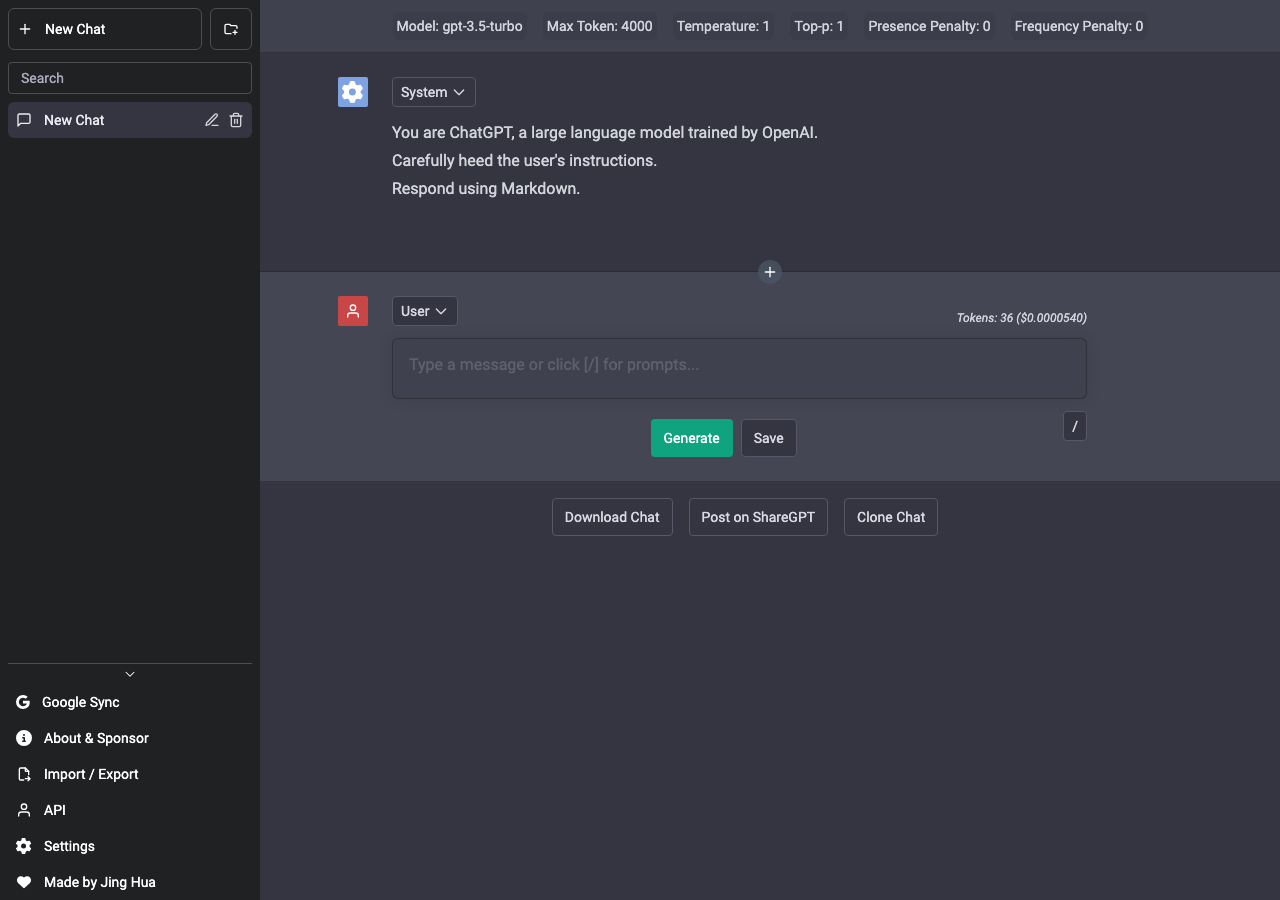
BetterChatGPT in the browser during the run

By the numbers

10 of 12
scenarios passed, 2 failed
122
browser actions
35
screenshots
127
model calls
6.3
minutes
12
scenarios
10
passed
2
failed
0
blocked
2
issues
medium2

Walkthrough

Every scenario DeepQA drove in the browser, in plan order, with the 32 screenshots it captured along the way. A passing scenario is evidence too.

  1. S1
    Main page load and API key dialog dismissal

    2 steps, 2 screenshots

    pass
    S1-1.png
    S1 · Main page load and API key dialog dismissal
    S1-5.png
    S1 · Main page load and API key dialog dismissal
    • A dialog ("Setup your API key") covered the page on load. It was closed through its own control before anything else was done.
    • Loaded https://bettergpt.chat/ and verified the main chat interface is visible with message input textbox.
    • Verified that the message input textbox is fully accessible and responsive to user input.
    • Navigated to https://bettergpt.chat/ and confirmed the main page loads successfully without crashing.
    • Verified the main chat interface is visible with model parameters, system prompt, and message input.
    • Verified the message input textbox is accessible and accepts user text input properly.
  2. S2
    Compose and save a chat message

    2 steps, 3 screenshots

    pass
    S2-1.png
    S2 · Compose and save a chat message
    S2-4.png
    S2 · Compose and save a chat message
    S2-6.png
    S2 · Compose and save a chat message
    • Entered 'Hello World' into the message input field.
    • Clicked Save and verified that 'Hello World' was appended to the chat conversation area.
    • The initial chat interface loaded with system prompt and an empty user message input area.
    • Typing 'Hello World' into the message input field and clicking 'Save' successfully appended the message to the chat history.
  3. S3
    Empty message validation

    2 steps, 3 screenshots

    fail
    S3-1.png
    S3 · Empty message validation
    S3-3.png
    S3 · Empty message validation
    S3-7.png
    S3 · Empty message validation
    • Loaded BetterChatGPT home page with an empty message input box and a Save button available.
    • Clicked Save with an empty input textbox; verified no empty message bubble was added to the conversation.
    • When the message input textbox is completely empty (0 characters), clicking 'Save' correctly does not add any message bubble to the chat history.
    • When the message input textbox contains only whitespace characters (' '), clicking 'Save' accepts the input and adds a blank User message bubble to the conversation.
  4. S4
    Edit chat title

    3 steps, 3 screenshots

    pass
    S4-1.png
    S4 · Edit chat title
    S4-3.png
    S4 · Edit chat title
    S4-7.png
    S4 · Edit chat title
    • Clicked edit chat title button; the title turned into an editable text input with confirm and cancel buttons.
    • Entered 'My Test Chat' and pressed Enter; chat title in the sidebar and document title successfully updated to 'My Test Chat'.
    • Editing the chat title via the 'edit chat title' button, inputting 'My Test Chat', and pressing Enter successfully renamed the chat in the sidebar and updated the document title.
  5. S5
    Delete chat conversation

    2 steps, 3 screenshots

    pass
    S5-1.png
    S5 · Delete chat conversation
    S5-3.png
    S5 · Delete chat conversation
    S5-5.png
    S5 · Delete chat conversation
    • Clicked the delete chat button; confirmation and cancel buttons appeared for 'My Test Chat'.
    • Confirmed chat deletion; 'My Test Chat' was successfully deleted and removed from the sidebar.
    • The chat deletion flow functioned as expected: clicking the delete chat icon displayed inline confirm and cancel buttons, and clicking confirm removed the conversation from the sidebar.
  6. S6
    Persist chat messages across reload

    3 steps, 3 screenshots

    pass
    S6-3.png
    S6 · Persist chat messages across reload
    S6-5.png
    S6 · Persist chat messages across reload
    S6-7.png
    S6 · Persist chat messages across reload
    • Typed 'Persistent message' into the user message input textbox.
    • Clicked Save and observed 'Persistent message' displayed in the chat conversation history.
    • Reloaded the page and verified that 'Persistent message' is still displayed in the chat conversation.
    • The user typed 'Persistent message' into the message input textbox and saved it.
    • The message appeared in the conversation history and persisted in local storage across a full page reload.
  7. S7
    Change message role

    4 steps, 4 screenshots

    fail
    S7-1.png
    S7 · Change message role
    S7-3.png
    S7 · Change message role
    S7-10.png
    S7 · Change message role
    S7-14.png
    S7 · Change message role
    • Loaded the main chat interface at https://bettergpt.chat/.
    • Clicked the role selector button next to the message input box, which opened the role options menu ('User', 'Assistant', 'System').
    • Observed that the role options in the dropdown list are rendered as plain non-interactive list items lacking ARIA roles or keyboard accessibility, preventing selection.
    • Typed 'You are a helpful assistant' and clicked 'Save'.
    • The message was saved with the default 'User' role instead of 'System'.
  8. S8
    Clone chat conversation

    1 step, 3 screenshots

    pass
    S8-1.png
    S8 · Clone chat conversation
    S8-3.png
    S8 · Clone chat conversation
    S8-7.png
    S8 · Clone chat conversation
    • Clicked the Clone Chat button, resulting in 'Copy of New Chat' appearing in the sidebar navigation.
    • Clicked the 'Clone Chat' button on the initial chat page.
    • Observed that a duplicated chat titled 'Copy of New Chat' was successfully created and appeared in the sidebar navigation without any errors.
  9. S9
    Download chat options

    1 step, 2 screenshots

    pass
    S9-1.png
    S9 · Download chat options
    S9-3.png
    S9 · Download chat options
    • Clicked the 'Download Chat' button and verified that the Download Chat modal appeared with image, markdown, and json export options.
    • Clicked 'Download Chat' button under the message area.
    • The 'Download Chat' modal was opened displaying options for Image, Markdown, and JSON export formats.
  10. S10
    Insert prompt from library

    1 step, 2 screenshots

    pass
    S10-1.png
    S10 · Insert prompt from library
    S10-3.png
    S10 · Insert prompt from library
    • Clicked the 'prompt library' button and observed the Prompt Library popup opening with a search bar and list of prompt templates.
    • The Prompt Library button opens a popup containing a search input and available prompt templates such as 'English Translator'.
  11. S11
    Search chat history

    2 steps, 2 screenshots

    pass
    S11-4.png
    S11 · Search chat history
    S11-7.png
    S11 · Search chat history
    • Saved a user message containing 'UniqueSearchTerm' into the active chat.
    • Typed 'UniqueSearchTerm' into the search textbox and observed that the sidebar filtered out chats that do not contain the term, leaving only the matching chat.
    • The chat search functionality accurately filters the sidebar chat list based on message content matching the search term.
  12. S12
    Generate response without API key

    2 steps, 2 screenshots

    pass
    S12-2.png
    S12 · Generate response without API key
    S12-5.png
    S12 · Generate response without API key
    • Entered 'Ask a question' into the message input box.
    • Clicked 'Generate' without configuring an API key, and the application displayed the error message 'No API key supplied! Please check your API settings.'
    • Typing 'Ask a question' into the message input and clicking 'Generate' without setting up an OpenAI API key cleanly displayed the error message 'No API key supplied! Please check your API settings.'

Issues

Findings that survived the Critic's audit. Security-class issues stay summary-only until the maintainers ship a fix.

mediumconfirmed ✓functionalF1 · S3

Whitespace-only message is accepted and saved as an empty message bubble in chat history

The tester's observation confirms that submitting a whitespace-only string successfully creates a blank message bubble in the chat history.

Expected

Whitespace-only messages should be trimmed and rejected without adding an empty message bubble to the chat history.

Actual

Submitting whitespace-only input by clicking 'Save' creates and appends an empty User message bubble to the chat conversation history.

Repro · 4 steps
  1. Navigate to https://bettergpt.chat/
  2. Enter whitespace characters (e.g. ' ') into the message input textbox.
  3. Click the 'Save' button.
  4. Observe that a blank User message bubble is added to the conversation.
mediumconfirmed ✓accessibilityF2 · S7

Role selector dropdown items lack accessible roles and keyboard navigation, causing messages to save with default User role

The evidence supports the claim that the dropdown items lack ARIA roles and keyboard handlers, representing a valid accessibility defect that blocks keyboard-only selection.

Expected

Role selector options should be interactive, keyboard-navigable, and selectable with appropriate ARIA roles (e.g. role='option' or role='menuitem').

Actual

Dropdown items are non-focusable list items without keyboard handlers, preventing role changes and defaulting the saved message to 'User'.

Repro · 4 steps
  1. Navigate to https://bettergpt.chat/
  2. Click the role selector button next to the chat input field (labeled 'User')
  3. Observe the dropdown menu with 'User', 'Assistant', and 'System' options
  4. Attempt to navigate or select 'System' via keyboard navigation or accessibility controls

Critic audit

An adversarial second pass over every finding before it reaches the report.

2
findings reviewed
0
re-verified live
0
withdrawn
  • F1confirmed ✓

    The tester's observation confirms that submitting a whitespace-only string successfully creates a blank message bubble in the chat history.

  • F2confirmed ✓

    The evidence supports the claim that the dropdown items lack ARIA roles and keyboard handlers, representing a valid accessibility defect that blocks keyboard-only selection.

  • The test environment did not have an API key, which prevented the testing of actual response generation, though the application handled the missing key gracefully.

Report

QA report: external/bettergpt.chat at hosted

Core chat management is largely operational, but whitespace input is accepted as blank messages and the role selector cannot be navigated via keyboard.

Testing covered 12 scenarios focusing on core chat workflows, including message composition, title editing, conversation deletion, local persistence across reloads, cloning, downloading options, prompt library insertion, and search. Ten of the twelve scenarios completed successfully.

Two functional and accessibility defects were identified. Submitting whitespace-only input bypasses validation and saves empty message bubbles into the chat history. Additionally, the role selector dropdown items lack accessible roles and keyboard interaction handlers, preventing keyboard users from selecting non-default roles when composing messages.

The testing run did not include an active API key, so live response generation from model backends was not exercised, though the interface handled the absence of credentials without crashing.

Run summary
MetricCount
Scenarios executed12
Passed10
Failed2
Blocked0
Findings raised2
Issues after the audit2
Withdrawn by the audit0
Critical / high / medium / low0 / 0 / 2 / 0

Target: https://bettergpt.chat · Testing level: deep_feature · Stack: unknown

Issues
Medium severity
F1 · Whitespace-only message is accepted and saved as an empty message bubble in chat history

Severity: medium · Type: functional · Verdict: confirmed · Scenario: S3

The tester's observation confirms that submitting a whitespace-only string successfully creates a blank message bubble in the chat history.

Expected: Whitespace-only messages should be trimmed and rejected without adding an empty message bubble to the chat history.

Actual: Submitting whitespace-only input by clicking 'Save' creates and appends an empty User message bubble to the chat conversation history.

Steps to reproduce:

  1. Navigate to https://bettergpt.chat/
  2. Enter whitespace characters (e.g. ' ') into the message input textbox.
  3. Click the 'Save' button.
  4. Observe that a blank User message bubble is added to the conversation.

Evidence: screenshots/S3-7.png

F2 · Role selector dropdown items lack accessible roles and keyboard navigation, causing messages to save with default User role

Severity: medium · Type: accessibility · Verdict: confirmed · Scenario: S7

The evidence supports the claim that the dropdown items lack ARIA roles and keyboard handlers, representing a valid accessibility defect that blocks keyboard-only selection.

Expected: Role selector options should be interactive, keyboard-navigable, and selectable with appropriate ARIA roles (e.g. role='option' or role='menuitem').

Actual: Dropdown items are non-focusable list items without keyboard handlers, preventing role changes and defaulting the saved message to 'User'.

Steps to reproduce:

  1. Navigate to https://bettergpt.chat/
  2. Click the role selector button next to the chat input field (labeled 'User')
  3. Observe the dropdown menu with 'User', 'Assistant', and 'System' options
  4. Attempt to navigate or select 'System' via keyboard navigation or accessibility controls

Evidence: screenshots/S7-3.png, screenshots/S7-14.png

Scenario results
ScenarioPriorityResultIssues
S1 Main page load and API key dialog dismissalhighpassnone
S2 Compose and save a chat messagehighpassnone
S3 Empty message validationhighfailF1
S4 Edit chat titlehighpassnone
S5 Delete chat conversationhighpassnone
S6 Persist chat messages across reloadhighpassnone
S7 Change message rolemediumfailF2
S8 Clone chat conversationmediumpassnone
S9 Download chat optionsmediumpassnone
S10 Insert prompt from librarymediumpassnone
S11 Search chat historymediumpassnone
S12 Generate response without API keymediumpassnone
The audit

The Critic reviewed 2 findings and re-verified 0 of them live in the browser, replaying the reported steps on a fresh page.

  • The test environment did not have an API key, which prevented the testing of actual response generation, though the application handled the missing key gracefully.
What to fix first
  1. F1: Add input validation to prevent whitespace-only messages from being saved as empty chat bubbles.
  2. F2: Implement standard accessibility roles and keyboard navigation for the message role selector dropdown.
Coverage and caveats

In scope: Local chat management; Message composition and saving; Local storage persistence; Chat export and cloning features; Handling missing API key gracefully.

Not covered: API response generation with a valid OpenAI key (needs an account/paid API key, out of scope for a hosted run); Post on ShareGPT (external integration testing).

  • The application relies entirely on client-side local storage for persistence across reloads.
  • The initial 'Setup your API key' dialog can be safely dismissed without blocking local chat functionality.
By the numbers
MetricValue
Scenarios10 passed, 2 failed, 0 blocked of 12 (25 planned steps)
Browser actions122 (28 clicks, 15 inputs, 14 navigations, 65 snapshots)
Screenshots35 (3 explore, 32 scenario, 0 critic), 32 captioned
Coverage1 pages, 2 forms, 4 flows, 0 console errors
Audit2 findings, 0 re-verified live, 2 confirmed, 0 promoted, 0 withdrawn
Model calls127
Tokens531,659 input, 6,408 output, 17,569 thinking
Time6 min
StageCallsInputOutputThinkingSeconds
explore1562,5791,0901,78044
plan12,9831,6883,17536
test109460,0293,15810,096276
critique14,5012301,99417
report11,5672425246

Run log

stagecallstokenstime
Explore1565.4k44s
Plan17.8k36s
Test109473.3k4m 36s
Critique16.7k17s
Report12.3k6s
Total127555.6k6m 19s
Intake
Explore
Plan
Test
Critique
Report
  • 01:01:29Zexploreexplore started
  • 01:07:48ZexploreExplored / (17 controls, 0 forms)
  • 01:07:48ZexploreA dialog ("Setup your API key") covered the page on load. It was closed through its own control before anything else was done.
  • 01:07:48ZexploreMapped 1 pages, 2 forms, 4 flows in 15 turns.
  • 01:07:48Zexploreexplore completed in 44s.
  • 01:07:48Zplanplan started
  • 01:07:48ZplanPlanned 12 scenarios (6 high, 6 medium, 0 low).
  • 01:07:48Zplanplan completed in 36s.
  • 01:07:48Ztesttest started
  • 01:07:48ZtestS1 executed (pass)
  • 01:07:48ZtestS2 executed (pass)
  • 01:07:48ZtestS3 executed (fail), 1 finding
  • 01:07:48ZtestS4 executed (pass)
  • 01:07:48ZtestS5 executed (pass)
  • 01:07:48ZtestS6 executed (pass)
  • 01:07:48ZtestS7 executed (fail), 1 finding
  • 01:07:48ZtestS8 executed (pass)
  • 01:07:48ZtestS9 executed (pass)
  • 01:07:48ZtestS10 executed (pass)
  • 01:07:48ZtestS11 executed (pass)
  • 01:07:48ZtestS12 executed (pass)
  • 01:07:48ZtestExecuted 12 scenarios: 10 passed, 2 failed, 0 blocked, 2 findings.
  • 01:07:48Ztesttest completed in 276s.
  • 01:07:48Zcritiquecritique started
  • 01:07:48ZcritiqueReviewed 2 findings; 0 possible defects spotted in passed scenarios.
  • 01:07:48ZcritiqueAudit complete: 2 confirmed, 0 withdrawn, 0 promoted, 0 re-verified live.
  • 01:07:48Zcritiquecritique completed in 17s.
  • 01:07:48Zreportreport started
  • 01:07:48ZreportReported 2 issues (0 critical, 0 high, 2 medium, 0 low) from 2 findings.
  • 01:07:48Zreportreport completed in 6s.

Put an agent team on your next pull request.

Connect a repo, dispatch a Run, and read an audited, evidence-backed report the same day.