Hosted appIn-browser chatHosted, in placesucceeded

Open-source chat app by MLC that runs language models fully in the browser with WebGPU. Tested in place on its hosted instance.

Tested in place byDeepQA Teamatchat.webllm.ai/onSep 20, 2026

Run #1model gemini-balanced (vertex)took 7m

11 of 12 scenarios passed, 1 failed, 1 medium functional issue after the audit.

Share on X
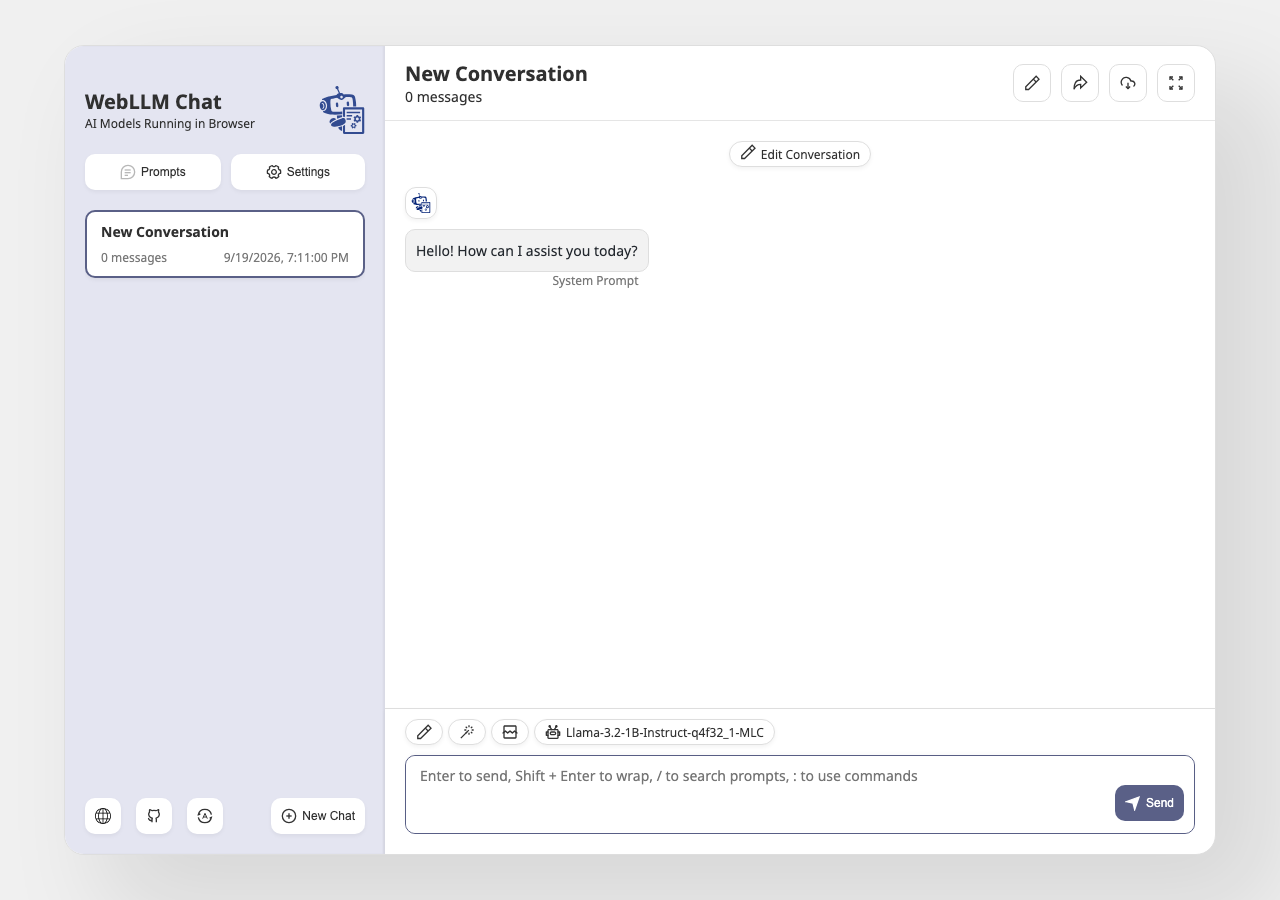
WebLLM Chat in the browser during the run

By the numbers

11 of 12
scenarios passed, 1 failed
164
browser actions
40
screenshots
166
model calls
7.3
minutes
12
scenarios
11
passed
1
failed
0
blocked
1
issues
medium1

Walkthrough

Every scenario DeepQA drove in the browser, in plan order, with the 36 screenshots it captured along the way. A passing scenario is evidence too.

  1. S1
    Application Load and Primary Interface Availability

    2 steps, 1 screenshot

    pass
    S1-2.png
    S1 · Application Load and Primary Interface Availability
    • Navigated to https://chat.webllm.ai/#/chat and verified that the chat interface loads completely with the 'New Chat' button (ref e7) and message input textbox (ref e12) visible and accessible.
    • WebLLM Chat application loaded successfully at https://chat.webllm.ai/#/chat with all primary interface components intact.
    • Observed the 'New Chat' button, conversation list, model selector badge (Llama-3.2-1B-Instruct-q4f32_1-MLC), and the 'Send' textbox/button.
  2. S2
    Graceful Hardware Failure on Message Send

    3 steps, 3 screenshots

    pass
    S2-1.png
    S2 · Graceful Hardware Failure on Message Send
    S2-4.png
    S2 · Graceful Hardware Failure on Message Send
    S2-7.png
    S2 · Graceful Hardware Failure on Message Send
    • Navigated to WebLLM Chat application home page.
    • Typed 'Hello world' into the chat input field.
    • Application correctly displayed an error message stating 'Unable to find a compatible GPU' when attempting to run inference without a compatible GPU.
    • Successfully verified that WebLLM gracefully catches and displays 'Error: Unable to find a compatible GPU' in the UI when sending a message without compatible GPU hardware.
  3. S3
    Update Conversation Topic

    4 steps, 4 screenshots

    pass
    S3-1.png
    S3 · Update Conversation Topic
    S3-6.png
    S3 · Update Conversation Topic
    S3-8.png
    S3 · Update Conversation Topic
    S3-11.png
    S3 · Update Conversation Topic
    • Opened Conversation Settings modal by clicking the edit conversation header button.
    • Clicked Confirm button; the modal closed and the topic successfully updated to 'Test Topic 123' in the conversation header and sidebar list.
    • Navigated to WebLLM Chat interface and opened Conversation Settings modal.
    • Updated topic text input from 'New Conversation' to 'Test Topic 123'.
    • Submitted the form by clicking 'Confirm'; the modal closed and the topic was successfully updated to 'Test Topic 123' in the header and sidebar.
  4. S4
    Persist Conversation Settings Across Reloads

    6 steps, 4 screenshots

    pass
    S4-2.png
    S4 · Persist Conversation Settings Across Reloads
    S4-6.png
    S4 · Persist Conversation Settings Across Reloads
    S4-8.png
    S4 · Persist Conversation Settings Across Reloads
    S4-10.png
    S4 · Persist Conversation Settings Across Reloads
    • Opened Conversation Settings modal by clicking the edit conversation header button.
    • Updated conversation topic to 'Persistent Topic' and confirmed changes.
    • Reloaded the page and observed that 'Persistent Topic' remained displayed in the header and conversation list.
    • Navigated to https://chat.webllm.ai/#/chat and opened the Conversation Settings modal.
    • Changed the topic field value to 'Persistent Topic' and clicked Confirm.
    • Verified that the conversation topic was updated to 'Persistent Topic' in the header and sidebar list.
    • Reloaded the page and confirmed that 'Persistent Topic' persisted and remained displayed.
  5. S5
    Empty Message Validation

    3 steps, 3 screenshots

    pass
    S5-1.png
    S5 · Empty Message Validation
    S5-3.png
    S5 · Empty Message Validation
    S5-9.png
    S5 · Empty Message Validation
    • Navigated to the chat interface with an empty message input box.
    • Clicked the Send button with an empty textarea; no empty message bubble was added and the message count remained at 2.
    • The message input was left empty and the Send button was clicked; no message was dispatched and no empty chat bubble was created.
    • Tested whitespace-only input and Enter key submission; no action occurred, correctly preventing empty message submission without error.
  6. S6
    Toggle Hide Context Prompts

    4 steps, 4 screenshots

    pass
    S6-1.png
    S6 · Toggle Hide Context Prompts
    S6-5.png
    S6 · Toggle Hide Context Prompts
    S6-7.png
    S6 · Toggle Hide Context Prompts
    S6-9.png
    S6 · Toggle Hide Context Prompts
    • Opened Conversation Settings modal by clicking the edit header button.
    • Toggled the Hide Context Prompts checkbox to checked.
    • Clicked Confirm and observed that the Conversation Settings modal closed without error.
    • Navigated to WebLLM Chat and opened Conversation Settings via the header edit button.
    • Toggled the 'Hide Context Prompts' checkbox and submitted the form by clicking Confirm.
    • The Conversation Settings modal accepted the change and closed cleanly with no errors.
  7. S7
    Export Conversation as Markdown

    3 steps, 3 screenshots

    pass
    S7-1.png
    S7 · Export Conversation as Markdown
    S7-4.png
    S7 · Export Conversation as Markdown
    S7-9.png
    S7 · Export Conversation as Markdown
    • Navigated to chat view with active conversation and Export All Messages as Markdown button visible.
    • Rendered Markdown export overlay opened successfully with preview, Copy All, Download, and Share options.
    • Successfully navigated to chat interface and located 'Export All Messages as Markdown' button.
    • Clicking 'Export All Messages as Markdown' opened the Export Messages overlay with format selection, context toggle, preview, copy, and download actions.
    • Switching to Markdown format text and clicking Preview displayed the rendered Markdown export content.
  8. S8
    Navigate and Close Prompt Library

    3 steps, 3 screenshots

    pass
    S8-2.png
    S8 · Navigate and Close Prompt Library
    S8-5.png
    S8 · Navigate and Close Prompt Library
    S8-7.png
    S8 · Navigate and Close Prompt Library
    • Navigated to chat view at #/chat.
    • Clicked Prompts button and navigated to #/templates displaying the Prompt Library.
    • Clicked close button on Prompt Library modal and successfully returned to #/chat view.
    • Navigating to #/chat displays the chat conversation interface.
    • Clicking the 'Prompts' button opens the Prompt Library at #/templates, displaying default prompt templates.
    • Clicking the close modal button dismisses the Prompt Library and successfully returns the application to the chat interface at #/chat.
  9. S9
    Cancel Conversation Settings Edits

    5 steps, 4 screenshots

    fail
    S9-1.png
    S9 · Cancel Conversation Settings Edits
    S9-5.png
    S9 · Cancel Conversation Settings Edits
    S9-7.png
    S9 · Cancel Conversation Settings Edits
    S9-10.png
    S9 · Cancel Conversation Settings Edits
    • Opened the Conversation Settings modal from the conversation header.
    • Entered 'Should Not Save' into the Topic field in the Conversation Settings modal.
    • Dismissed the modal by pressing Escape; the conversation topic in the header and sidebar remained 'Should Not Save' instead of reverting to 'Persistent Topic'.
    • Observed that typing into the Topic field within Conversation Settings immediately mutates the conversation title in the header and sidebar, retaining the modified title after dismissing the modal.
  10. S10
    Prompt Library Export Function

    2 steps, 3 screenshots

    pass
    S10-2.png
    S10 · Prompt Library Export Function
    S10-4.png
    S10 · Prompt Library Export Function
    S10-6.png
    S10 · Prompt Library Export Function
    • Navigated to https://chat.webllm.ai/#/templates.
    • Opened Prompt Library modal displaying prompt collections and Export/Import buttons.
    • Clicked Prompt Library Export button; the export action executed without errors.
    • Navigated to https://chat.webllm.ai/#/templates and opened the Prompt Library modal.
    • The Prompt Library displayed saved prompt collections (GitHub Copilot, Prompt Improvement, CAN, Expert) along with Export and Import actions.
    • Clicked the 'Export' button in Prompt Library, executing the export action cleanly without JavaScript or UI errors.
  11. S11
    Access Global Settings Modal

    2 steps, 2 screenshots

    pass
    S11-1.png
    S11 · Access Global Settings Modal
    S11-4.png
    S11 · Access Global Settings Modal
    • Navigated to chat interface and located the Settings button in the sidebar.
    • Clicked the Settings button, URL changed to https://chat.webllm.ai/#/settings, and the global settings view loaded showing all configuration options.
    • Navigated to https://chat.webllm.ai/#/chat and clicked the Settings button.
    • The URL navigated to https://chat.webllm.ai/#/settings and the full global settings view rendered with all configuration controls.
  12. S12
    Trigger Share Conversation Action

    2 steps, 2 screenshots

    pass
    S12-1.png
    S12 · Trigger Share Conversation Action
    S12-3.png
    S12 · Trigger Share Conversation Action
    • Loaded WebLLM chat page with Share button visible on active conversation.
    • Clicked the Share button and observed a 'Copied to clipboard' notification appear on the screen.
    • Navigated to the chat interface at https://chat.webllm.ai/.
    • Clicked the 'Share' button on the conversation toolbar.
    • Observed the 'Copied to clipboard' notification appear, confirming the conversation share action functioned as expected.

Issues

Findings that survived the Critic's audit. Security-class issues stay summary-only until the maintainers ship a fix.

mediumconfirmed ✓functionalF1 · S9

Conversation Settings modal immediately mutates topic without clicking Confirm

The observations confirm that modifying the topic input instantly updates the application state, and dismissing the modal via Escape fails to revert the unconfirmed changes. The page reported 1 console error during the scenario.

Expected

The conversation topic should remain unchanged until the user explicitly saves changes by clicking Confirm, and should revert if the modal is dismissed.

Actual

The conversation topic input field binds reactively to the application state immediately upon typing, updating the topic displayed in the header and sidebar in real time, and persists the changes even when the modal is dismissed without clicking Confirm.

Repro · 5 steps
  1. Navigate to https://chat.webllm.ai/
  2. Click the edit button in the chat header to open the Conversation Settings modal
  3. Type 'Should Not Save' into the Topic field
  4. Dismiss the modal without clicking Confirm (by pressing Escape)
  5. Observe the conversation topic in the header and sidebar

Environment limitations

These failures came from the test environment, not from the application: a credential the sandbox does not hold, a demo nobody may write to, a resource it cannot reach. They are not counted as issues.

  • S2 could not exercise this: Model initialization fails due to missing WebGPU support in sandbox. The model fails to initialize because the test environment lacks WebGPU support. The audit recorded the test environment as the cause, so it is not counted as an issue.

Critic audit

An adversarial second pass over every finding before it reaches the report.

1
findings reviewed
0
re-verified live
0
withdrawn
  • F1confirmed ✓

    The observations confirm that modifying the topic input instantly updates the application state, and dismissing the modal via Escape fails to revert the unconfirmed changes.

  • The run successfully navigated the UI but was unable to test actual LLM inference due to the sandbox lacking WebGPU support.

Report

QA report: external/chat.webllm.ai at hosted

The application functions well overall, but the conversation settings modal mutates topic titles immediately without requiring confirmation.

A deep feature evaluation tested twelve scenarios covering core interface navigation, settings management, prompt library interactions, export functionality, and state persistence. Eleven scenarios passed, with one failing due to a functional defect in modal state handling.

The single failure occurred during conversation settings editing (F1). Typing into the conversation topic input field binds reactively and updates the topic across the header and sidebar in real time, persisting the modified name even when the modal is closed or cancelled without clicking Confirm.

Due to the test environment lacking WebGPU support, actual in-browser model initialization and full LLM inference could not be exercised, leaving generation performance unverified.

Run summary
MetricCount
Scenarios executed12
Passed11
Failed1
Blocked0
Findings raised1
Issues after the audit1
Withdrawn by the audit0
Critical / high / medium / low0 / 0 / 1 / 0

Target: https://chat.webllm.ai/ · Testing level: deep_feature · Stack: unknown

Issues
Medium severity
F1 · Conversation Settings modal immediately mutates topic without clicking Confirm

Severity: medium · Type: functional · Verdict: confirmed · Scenario: S9

The observations confirm that modifying the topic input instantly updates the application state, and dismissing the modal via Escape fails to revert the unconfirmed changes. The page reported 1 console error during the scenario.

Expected: The conversation topic should remain unchanged until the user explicitly saves changes by clicking Confirm, and should revert if the modal is dismissed.

Actual: The conversation topic input field binds reactively to the application state immediately upon typing, updating the topic displayed in the header and sidebar in real time, and persists the changes even when the modal is dismissed without clicking Confirm.

Steps to reproduce:

  1. Navigate to https://chat.webllm.ai/
  2. Click the edit button in the chat header to open the Conversation Settings modal
  3. Type 'Should Not Save' into the Topic field
  4. Dismiss the modal without clicking Confirm (by pressing Escape)
  5. Observe the conversation topic in the header and sidebar

Evidence: screenshots/S9-5.png, screenshots/S9-7.png, screenshots/S9-10.png

Environment limitations

These failures came from the test environment, not from the application: a credential the sandbox does not hold, a demo nobody may write to, a resource it cannot reach. They are not counted as issues. They record what this run could not exercise.

  • S2 could not exercise this: Model initialization fails due to missing WebGPU support in sandbox. The model fails to initialize because the test environment lacks WebGPU support. The audit recorded the test environment as the cause, so it is not counted as an issue.
Scenario results
ScenarioPriorityResultIssues
S1 Application Load and Primary Interface Availabilityhighpassnone
S2 Graceful Hardware Failure on Message Sendhighpassnone
S3 Update Conversation Topichighpassnone
S4 Persist Conversation Settings Across Reloadsmediumpassnone
S5 Empty Message Validationmediumpassnone
S6 Toggle Hide Context Promptsmediumpassnone
S7 Export Conversation as Markdownmediumpassnone
S8 Navigate and Close Prompt Librarymediumpassnone
S9 Cancel Conversation Settings EditslowfailF1
S10 Prompt Library Export Functionlowpassnone
S11 Access Global Settings Modallowpassnone
S12 Trigger Share Conversation Actionlowpassnone
The audit

The Critic reviewed 1 finding and re-verified 0 of them live in the browser, replaying the reported steps on a fresh page.

  • The run successfully navigated the UI but was unable to test actual LLM inference due to the sandbox lacking WebGPU support.
What to fix first
  1. F1: Buffer conversation settings input locally within the modal so changes only apply and persist to application state when confirmed.
Coverage and caveats

In scope: Chat interface and message input handling; Graceful error handling for missing WebGPU support; Conversation settings modification (Topic, Context Prompts); Persistence of conversation settings across reloads; Export and Share interface interactions; Prompt library and global settings navigation.

Not covered: Successful LLM message inference (requires hardware WebGPU support unavailable in the headless test environment); Model downloading and caching mechanics (dependent on successful GPU initialization).

  • The test runner operates in a non-GPU environment, so inference will predictably fail with a 'Unable to find a compatible GPU' error.
  • The application initializes a default conversation upon first load, making the edit controls immediately available.
  • Conversations are stored in LocalStorage or IndexedDB, meaning changes should persist across page reloads in the same session.
By the numbers
MetricValue
Scenarios11 passed, 1 failed, 0 blocked of 12 (39 planned steps)
Browser actions164 (41 clicks, 11 inputs, 20 navigations, 92 snapshots)
Screenshots40 (4 explore, 36 scenario, 0 critic), 36 captioned
Coverage4 pages, 2 forms, 4 flows, 3 console errors
Audit1 findings, 0 re-verified live, 1 confirmed, 0 promoted, 0 withdrawn
Model calls166
Tokens758,440 input, 7,899 output, 13,044 thinking
Time7 min
StageCallsInputOutputThinkingSeconds
explore32138,2041,7702,002101
plan13,8351,9893,50640
test131609,6583,5755,873278
critique15,2043561,36013
report11,5392093035

Run log

stagecallstokenstime
Explore32142k1m 41s
Plan19.3k40s
Test131619.1k4m 38s
Critique16.9k13s
Report12.1k5s
Total166779.4k7m 17s
Intake
Explore
Plan
Test
Critique
Report
  • 01:10:59Zexploreexplore started
  • 01:18:16ZexploreExplored / (0 controls, 0 forms)
  • 01:18:16ZexploreMapped 4 pages, 2 forms, 4 flows in 32 turns.
  • 01:18:16Zexploreexplore completed in 101s.
  • 01:18:16Zplanplan started
  • 01:18:16ZplanPlanned 12 scenarios (3 high, 5 medium, 4 low).
  • 01:18:16Zplanplan completed in 40s.
  • 01:18:16Ztesttest started
  • 01:18:16ZtestS1 executed (pass)
  • 01:18:16ZtestS2 executed (pass)
  • 01:18:16ZtestS3 executed (pass)
  • 01:18:16ZtestS4 executed (pass)
  • 01:18:16ZtestS5 executed (pass)
  • 01:18:16ZtestS6 executed (pass)
  • 01:18:16ZtestS7 executed (pass)
  • 01:18:16ZtestS8 executed (pass)
  • 01:18:16ZtestS9 executed (fail), 1 finding
  • 01:18:16ZtestS10 executed (pass)
  • 01:18:16ZtestS11 executed (pass)
  • 01:18:16ZtestS12 executed (pass)
  • 01:18:16ZtestExecuted 12 scenarios: 11 passed, 1 failed, 0 blocked, 1 finding.
  • 01:18:16Ztesttest completed in 278s.
  • 01:18:16Zcritiquecritique started
  • 01:18:16ZcritiqueReviewed 1 findings; 1 possible defect spotted in passed scenarios.
  • 01:18:16ZcritiqueAudit complete: 1 confirmed, 0 withdrawn, 0 promoted, 0 re-verified live.
  • 01:18:16Zcritique1 failure came from the test environment rather than the application. It is reported as an environment limitation, not an issue.
  • 01:18:16Zcritiquecritique completed in 13s.
  • 01:18:16Zreportreport started
  • 01:18:16ZreportReported 1 issue (0 critical, 0 high, 1 medium, 0 low) from 1 finding.
  • 01:18:16Zreportreport completed in 5s.

Put an agent team on your next pull request.

Connect a repo, dispatch a Run, and read an audited, evidence-backed report the same day.